Connect your ZOLEO to FieldMate
After setup you can text people on Telegram or WhatsApp and ask the AI assistant, right from the ZOLEO app. Setup takes 10–15 minutes, most of it waiting for satellite delivery.
Before you start
Make sure you have:
- a FieldMate account;
- an active ZOLEO plan (any plan works);
- your ZOLEO email address. It ends in
@zoleo.com. In the ZOLEO app, open Settings, then Follow-Me Messaging (in the Device section). Your address is under Device Email Address; - your ZOLEO device and app at hand, because the verification code arrives there;
- internet access, so you can share invite links with people before going off grid.
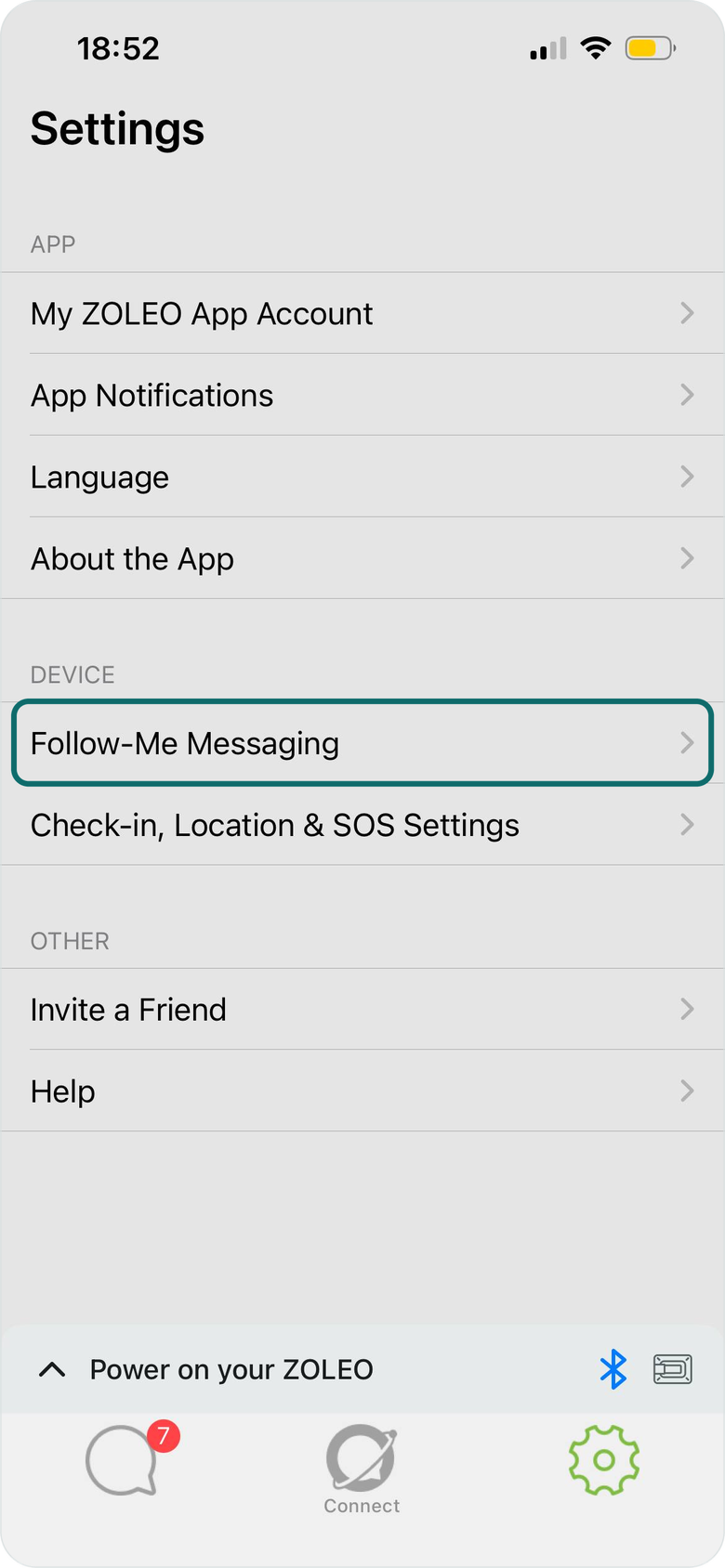
1. Add your ZOLEO
- In FieldMate, open Devices and select Add device.
- Select ZOLEO.
- In Device name, enter a name, for example “Anna's Zoleo”. You'll see it in your device list.
- In ZOLEO email, enter your address ending in
@zoleo.com. Your personal email won't work here. - Select Add device and send code.
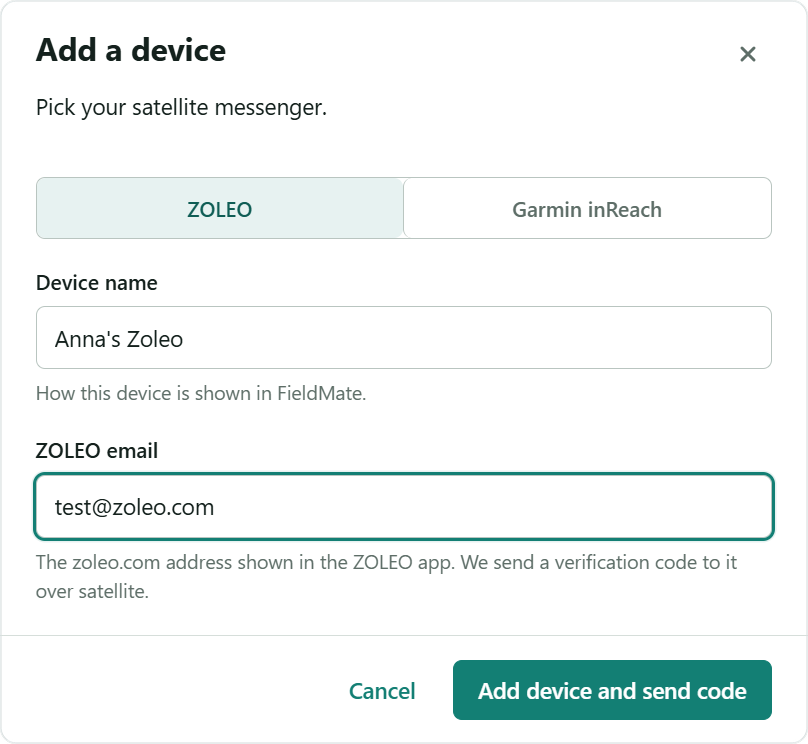
FieldMate adds the device as Not verified yet and sends a verification code to it straight away.
2. Verify your ZOLEO
Your new ZOLEO appears on the Devices page as Not verified yet. Below your device list, you'll see Verify this device.
- Wait for a message with a six-digit code in the ZOLEO app. Satellite delivery can take a few minutes.
- Enter the code in Verification code and select Verify device.
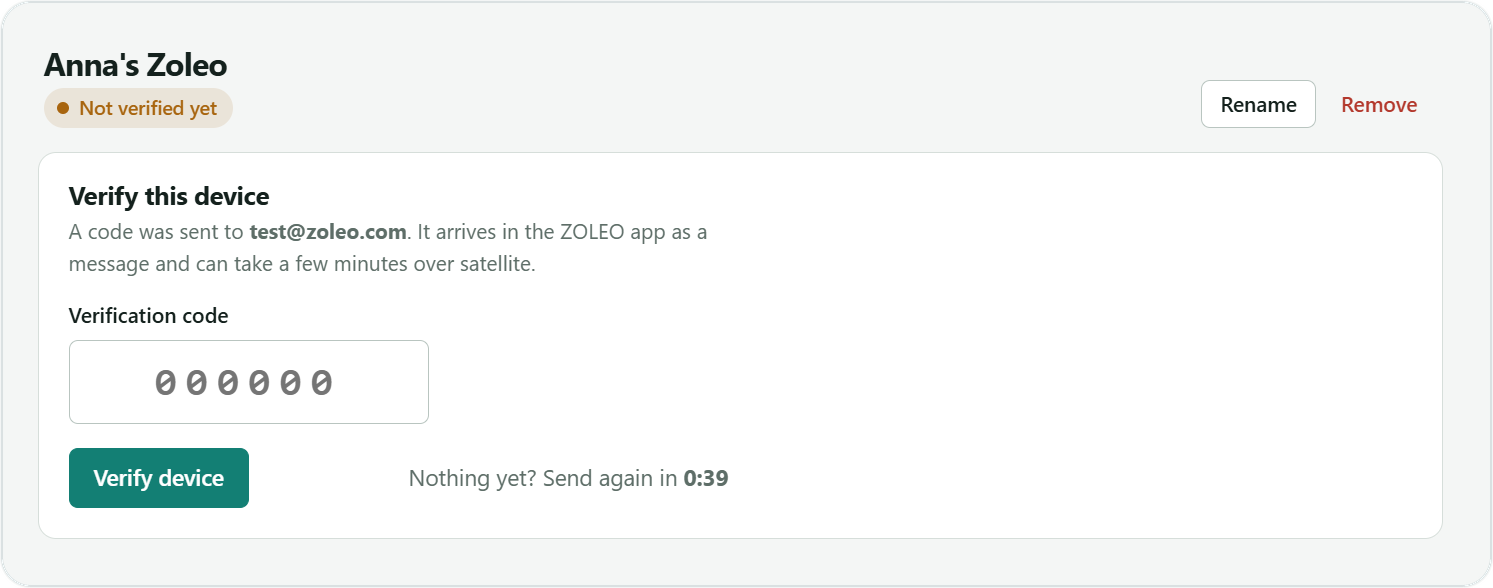
No code? When the countdown next to “Nothing yet?” ends, you can send a new code. If you requested several codes, enter the newest.
Done when the status changes from Not verified yet to Active.
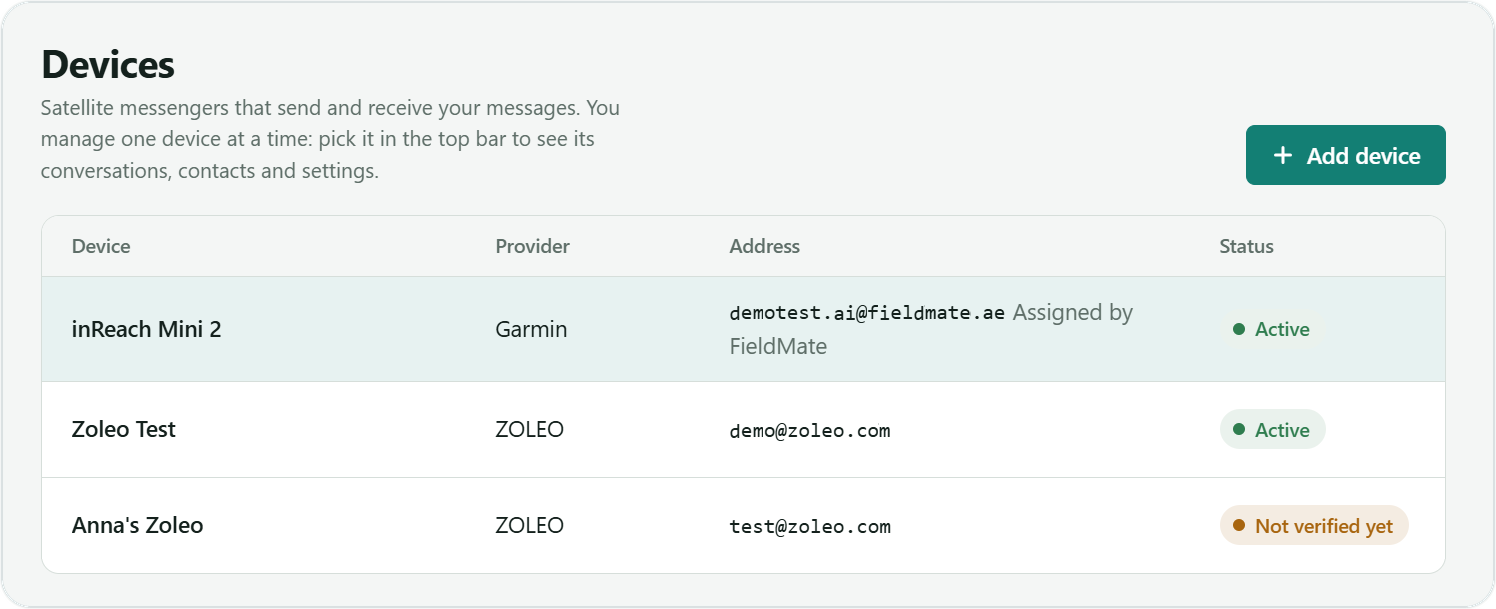
Keep the code to yourself. FieldMate support will never ask you for it.
3. Talk to the AI assistant
You don't need to add the AI assistant yourself. After verification, FieldMate creates a chat with it and sends the first message to your ZOLEO.
- In the ZOLEO app, find the chat with [email protected]. Its first message says your ZOLEO is connected. It can take a few minutes to arrive.
- Reply in that chat whenever you need help. There's no address to type or save.
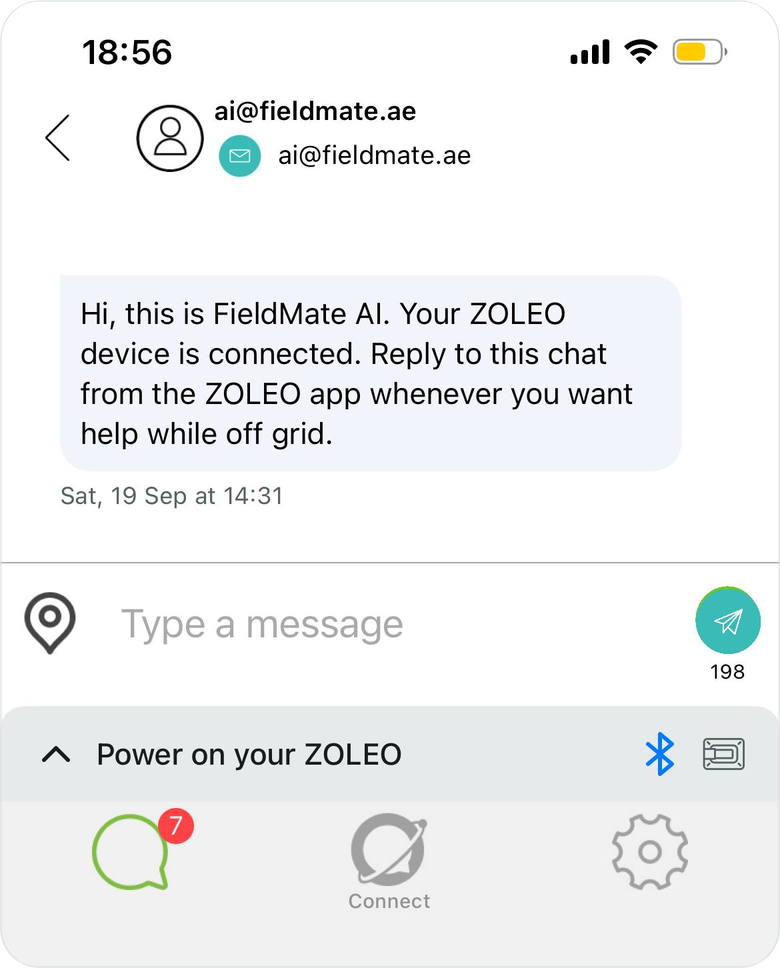
Long answers arrive as several messages, each fitting the ZOLEO message limit.
4. Add people
Each person gets their own chat on your ZOLEO. They read and reply in Telegram or WhatsApp.
- In FieldMate, open Contacts and add a contact: enter their name and email. Use a name you'll recognise on the device.
- Choose how they'll get your messages: Telegram or WhatsApp.
- A chat with this person appears in the ZOLEO app by itself. There's no address to type or save.
- Send the contact their invite link by text, email or any other way. You'll find it in FieldMate and in the first message of the new chat on your ZOLEO.
- The contact opens the link and connects in Telegram or WhatsApp. Send them to the guide for contacts if they need help.
- Now you can message each other. You write and read in this person's chat in the ZOLEO app, and they write and read in Telegram or WhatsApp. Either of you can write first.
Messages reach the person only after they've opened the invite link. Share it before you go off grid, while you both have internet.
Limits
| ZOLEO plan | Any active plan. Your ZOLEO allowance, overages and charges still apply. |
|---|---|
| One message | Up to 200 characters. |
| Per day | 50 events through FieldMate. |
| Per month | 1,500 events through FieldMate. |
| AI answers | Split into several messages automatically. |
Something not arriving? See Troubleshooting for ZOLEO.